Setting up a firewall can feel like a high-stakes puzzle, but breaking it down into a clear checklist makes the process much more manageable. Whether you are securing a small office or a growing business infrastructure, the goal is to create a "digital moat" that keeps the bad actors out while letting your team work without friction.
Here is a simplified, user-friendly guide to getting your firewall configured correctly.
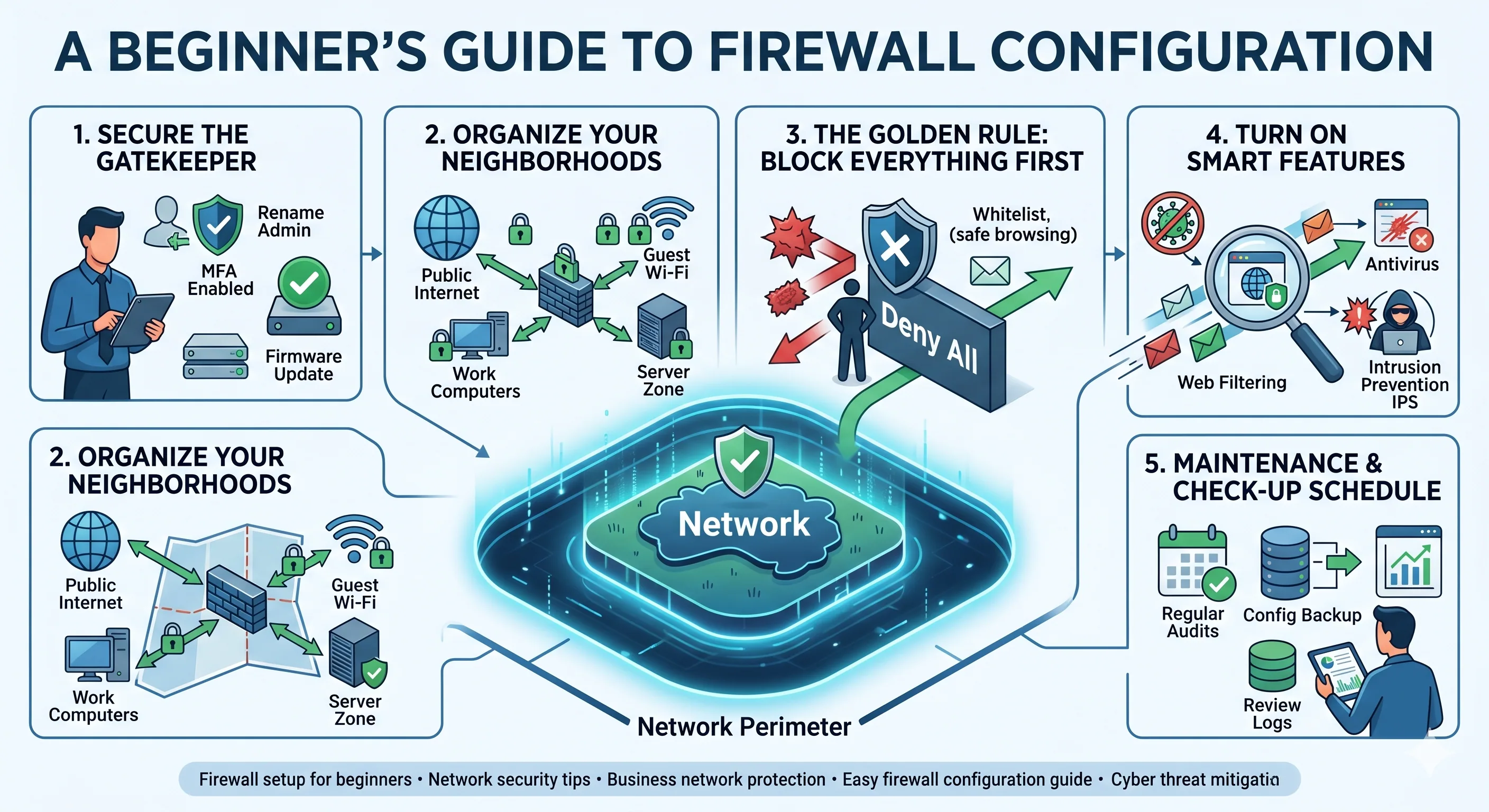
01The Foundation: Secure the Gatekeeper
Before you start creating rules for your team, you need to lock the "front door" of the firewall itself. If someone gains access to the hardware settings, your entire security plan is void.
- Change the Defaults: Hackers know the default "admin" usernames and "password123" settings for every major brand. Change these immediately.
- Enable Two-Factor Authentication (2FA): This is the single most effective way to prevent unauthorized access. Even if someone steals your password, they won't get in without the code on your phone.
- Update the Software: Manufacturers release "firmware updates" to patch security holes. Check for updates as soon as you plug the device in.
02Organize Your "Neighborhoods" (Segmentation)
You shouldn't treat your guest Wi-Fi the same way you treat your private server. Divide your network into zones based on who needs to be there.
- Public Zone: The Internet (where the threats live).
- Work Zone: Your laptops, desktop computers, and printers.
- Guest Zone: A restricted area for visitors so they can’t see your private files.
- Server/IoT Zone: A separate space for things like smart cameras or storage drives (NAS).
03The "Golden Rule": Block Everything First
The safest way to configure a firewall is to start with a "Deny All" policy. Imagine a nightclub with a very strict bouncer: if your name isn't on the list, you aren't coming in.
- Create the "Whitelist": Only open ports for specific tasks. For example, if you don't host a website, you probably don't need port 80 or 443 open for incoming traffic.
- Specific is Better: Instead of allowing "everyone" to access a file, only allow the specific IP addresses of your employees.
- Check Outgoing Traffic: It is just as important to watch what leaves your network. This prevents a compromised device from "calling home" to a hacker's database.
04Turn on the "Smart" Features
Modern firewalls do more than just block ports; they actually look at the data passing through to see if it looks suspicious.
- Antivirus Scanning: Many firewalls can scan files for viruses before they even reach your computer.
- Web Filtering: Block known malicious websites or categories (like gambling or known phishing sites) to keep your team safe while they browse.
- Intrusion Prevention (IPS): This feature looks for patterns that suggest someone is trying to "brute force" their way into your network and shuts them down automatically.
05Maintenance: Set a "Check-Up" Schedule
Security isn't a one-time event; it’s a habit. A rule that was necessary six months ago might be a security hole today.
- Backup Your Settings: Once you have everything working perfectly, save a backup file. If the hardware ever fails, you won't have to start from scratch.
- Delete Old Rules: If an employee leaves or you stop using a specific software, delete the firewall rules associated with them.
- Review the Logs: Spend ten minutes a week looking at the "blocked traffic" logs. It will give you a great idea of who is trying to get in and where you might need to tighten things up.
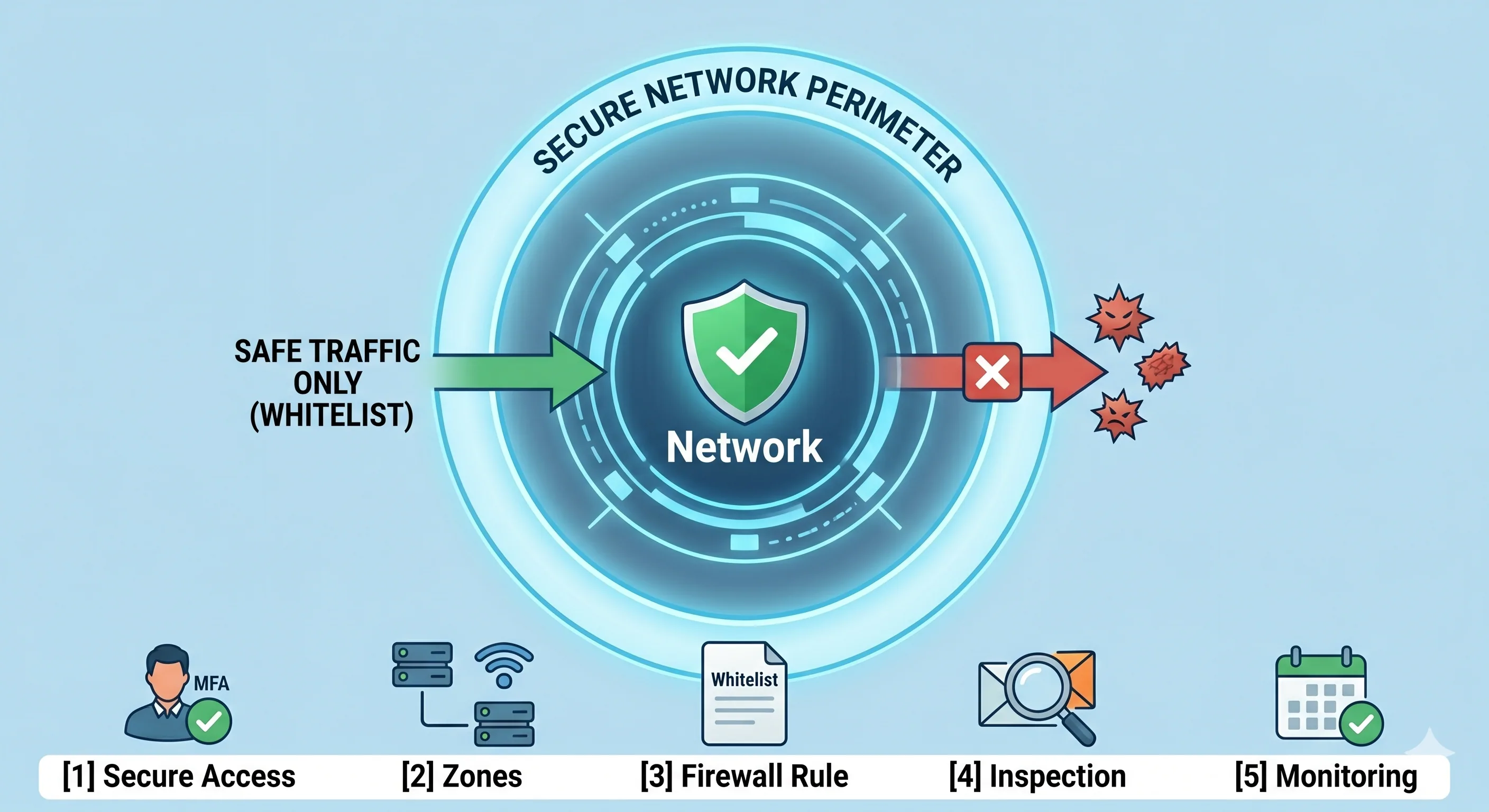
06Implement SSL/TLS Inspection (Deep Packet Inspection)
Most modern web traffic is encrypted (HTTPS). To a standard firewall, this traffic is a "black box" — it can see the source and destination, but not what is inside. Attackers frequently hide malware and command-and-control communication within encrypted traffic.
- How it Works: The firewall sits between your users and the internet. It terminates the SSL connection, decrypts and inspects the traffic, and then re-encrypts it before sending it to its destination.
- Key Challenge: This process is "resource-intensive" and can degrade your firewall’s performance. Furthermore, some domains (like banking and healthcare) should be "exempted" from inspection for privacy and regulatory reasons.
07Leverage Geolocation Filtering (Geo-IP)
If your organization does not conduct business with specific regions of the world, there is no reason to allow traffic from those IP ranges. This is a highly effective way to pre-emptively block traffic from known cybercrime hotspots.
- Implementation: Create inbound and outbound rules that block whole countries or continents. For instance, if you are a local non-profit in the U.S., you might block inbound traffic from all countries except Canada and Mexico.
- Benefit: This drastically reduces your attack surface and lowers the workload on your intrusion prevention system (IPS).
08Define User-Identity and Device-Based Rules
Traditional firewalls make decisions based on IP addresses. Modern firewalls (NGFW) integrate with your identity services (like Active Directory or Azure AD) to apply rules to specific users and devices, regardless of their IP.
- User-Based Access: Instead of saying "all accounting computers can access the server," you can define a rule that says "anyone in the ‘Accounting’ user group can access the server." This is more precise and adapts as employees change roles.
- Device Posture: Some firewalls can verify a device's health before granting access. If a laptop's operating system is outdated or its antivirus is disabled, the firewall can isolate it on a "remediation network."
09Create "Sandbox" Profiles for Unknown Threats
Your intrusion prevention system is great at stopping known threats. But what about a brand-new "zero-day" attack that has never been seen before? Sandboxing adds this layer of defense.
- The Sandbox: When a user attempts to download a suspicious or unknown file, the firewall can first send that file to a "cloud-based sandbox."
- Exploitation Simulation: The sandbox executes the file in a safe, isolated virtual environment to see what it does. If the file attempts to encrypt data or modify system files, it is flagged as malicious and the user is blocked from downloading it.
10Implement High Availability (HA) for Redundancy
Your firewall is the single point of entry and exit for your network. If it fails, your organization goes offline. In critical environments, implementing a "High Availability" or "Failover" pair is essential.
- Active/Passive: Two identical firewalls are configured. One is "active" and handles all traffic, while the other sits "passive," constantly synchronizing its configuration and session state with the master.
- Automatic Failover: If the active firewall hardware fails or loses its power supply, the passive unit immediately takes over. This ensures your network stays up and running with minimal to no user interruption.
Let Grizzly X handle your firewall deployment.
Our engineers source, configure, and deploy next-generation firewalls from leading vendors — and stand them up in high-availability pairs when uptime matters.