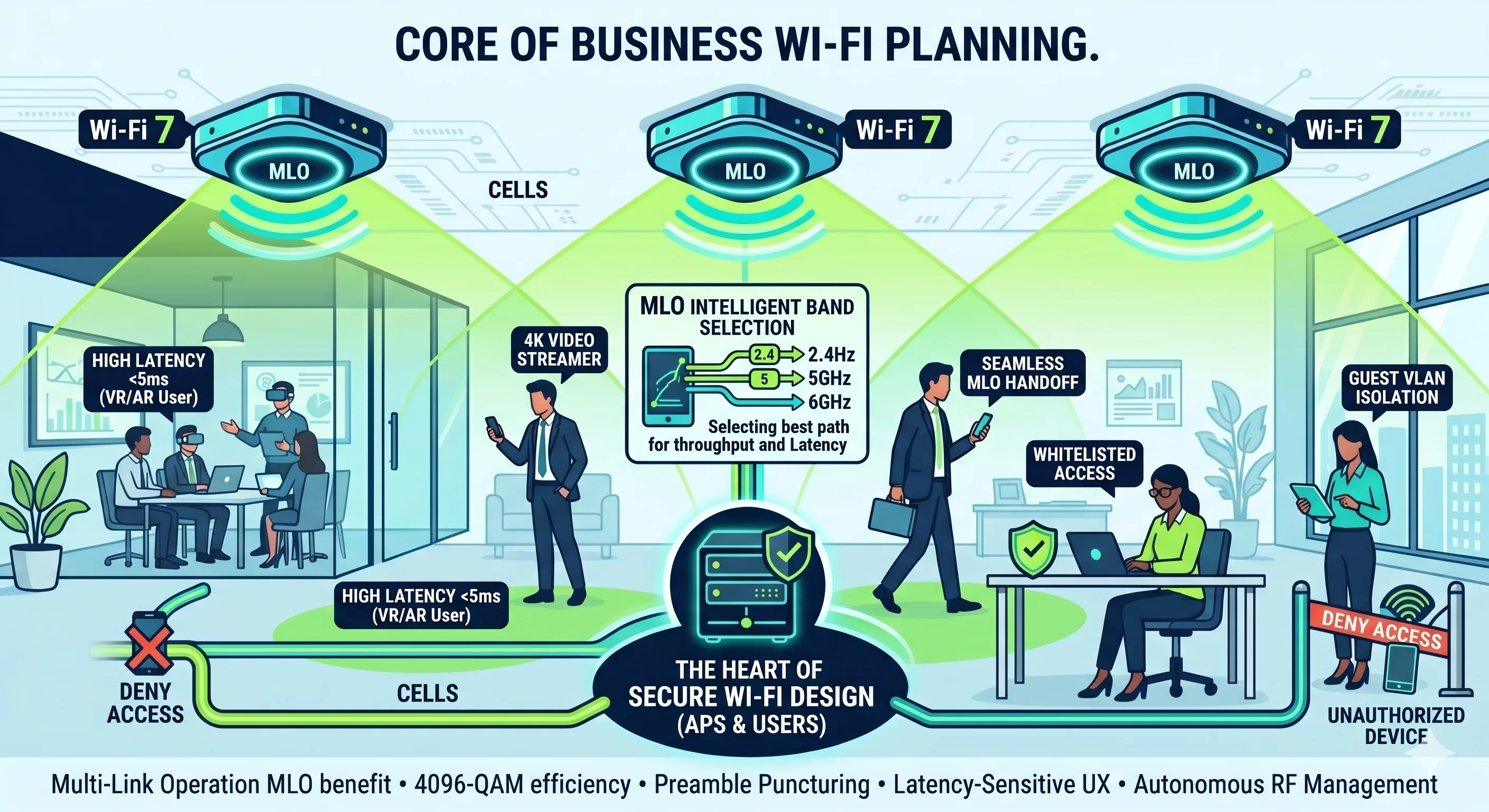
Effective Wi-Fi planning is the difference between a high-performance workspace and a frustrating office environment plagued by "dead zones" and dropped calls. In 2026, with the widespread adoption of Wi-Fi 7 and high-density IoT environments, a scientific approach to wireless coverage is mandatory.
Here is a comprehensive guide to planning a professional-grade wireless network.
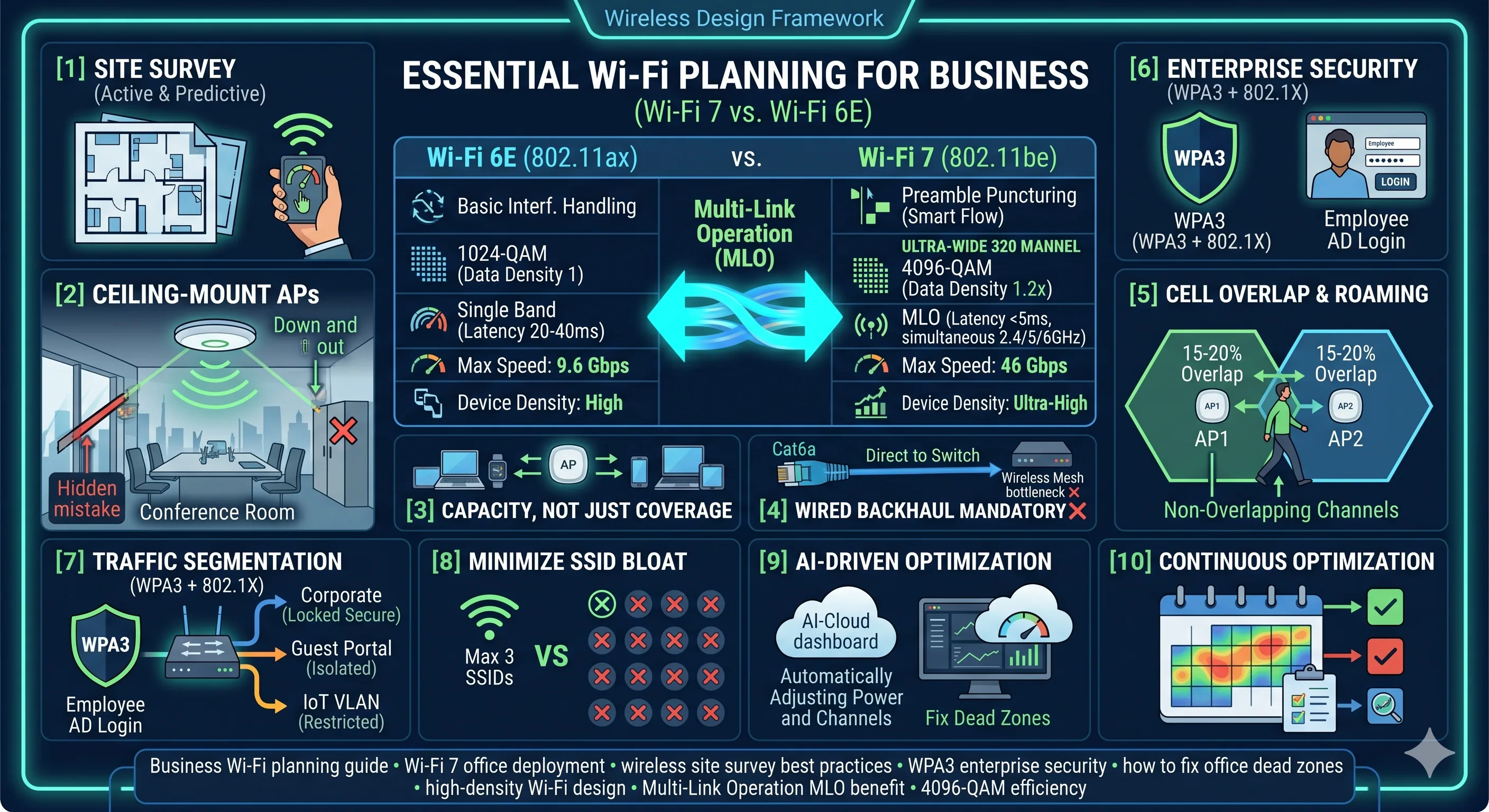
01Conduct a Site Survey (Predictive vs. Active)
Never guess where an access point (AP) should go. Use software to map your environment.
- Predictive Survey: Use a floor plan to input wall materials (brick, drywall, glass) and let a simulator predict signal propagation.
- Active Survey: Walk the actual space with a testing device to measure real-world interference from neighboring networks and physical obstacles.
02Leverage the 6GHz Band (Wi-Fi 6E & 7)
Older Wi-Fi used the 2.4GHz and 5GHz bands, which are now extremely crowded.
- The 6GHz Advantage: This band offers massive "ultra-wide" channels with virtually zero interference from older legacy devices.
- Implementation: Prioritize Wi-Fi 7 APs for high-density areas like conference rooms and open-plan offices where dozens of devices connect simultaneously.
03AP Placement: Ceiling is King
Access points are designed to radiate signal downward and outward in a "donut" shape.
- Ceiling Mount: Always mount APs on the ceiling in the center of the room or hallway.
- Avoid the "Hidden" Mistake: Never hide APs inside cabinets, behind metal beams, or above ceiling tiles. Every layer of material between the AP and the user degrades the signal.
04Account for "Capacity," Not Just "Coverage"
A single AP might have a long range, but it can only handle a limited number of active devices before speeds crawl.
- User Density: Plan for at least 2.5 devices per person (laptop, smartphone, tablet/watch).
- High-Traffic Areas: In cafeterias or large meeting rooms, install multiple APs with reduced transmit power to handle the high device count without interfering with each other.
05Master the "Cell Overlap"
For seamless roaming, your AP signals must overlap correctly so a device can "hand off" to a new AP before losing the old one.
- The 15-20% Rule: Aim for a 15% to 20% overlap between AP coverage cells.
- Avoid "Co-Channel Interference": Ensure neighboring APs are on different channels. Use non-overlapping channels (1, 6, 11 for 2.4GHz; specific blocks for 5GHz and 6GHz).
06Wired Backhaul is Mandatory
Never use "Wireless Mesh" or "Extenders" in a professional business environment.
- Direct Ethernet: Every single access point must be connected back to the main switch via a Cat6a cable.
- PoE+ Support: Use switches that provide PoE+ (802.3at) or PoE++ to ensure modern, high-performance APs have enough power to run all their radios at full capacity.
07Security: Move to WPA3 & Enterprise Auth
WPA2 is no longer considered secure for enterprise environments.
- WPA3-Enterprise: This provides superior encryption and individualized security.
- 802.1X Authentication: Instead of a shared "company password," use 802.1X to allow employees to log in with their unique office credentials (linked to Active Directory or Google Workspace).
08Separate IoT and Guest Traffic
Don't let your smart fridge or a visitor's laptop sit on the same network as your server.
- Guest Portal: Use a captive portal for guests that isolates their traffic entirely.
- IoT Isolation: Put printers, smart TVs, and sensors on a dedicated, firewalled VLAN.
09Minimize "SSID Bloat"
Every SSID (Network Name) your AP broadcasts takes up "airtime" just to announce its presence.
- Limit to 3 SSIDs: Ideally, have one for Corporate, one for Guest, and one for IoT. Every extra SSID reduces the overall efficiency of your wireless bandwidth.
10Continuous Optimization
Wireless environments change. New furniture, more staff, or a new neighbor’s Wi-Fi can ruin your plan.
- Heatmap Audits: Once a year, re-run a site survey to identify new dead zones.
- AI Management: Use a cloud-based controller that automatically adjusts AP channels and power levels in real-time to combat interference.
Wi-Fi 6E vs. Wi-Fi 7 Comparison
If you are deciding between standards for a new deployment, this side-by-side breakdown shows where Wi-Fi 7 pulls ahead and why it matters for your business.
Which Should You Choose in 2026?
Wi-Fi 6E
- You recently upgraded your infrastructure (within the last 24 months).
- Your team primarily uses standard office apps, email, and 1080p video calls.
- You are on a strict budget but need to escape the interference of the 2.4GHz/5GHz bands.
Wi-Fi 7
- You are building a new office or performing a major hardware refresh.
- Your work involves large file transfers (4K/8K video, high-res architectural renders, or big data).
- You use latency-sensitive tools like VR/AR training or real-time VoIP systems.
- You have a high-density environment (e.g., a co-working space or an office with 50+ devices per area).
Let Grizzly X plan your Wi-Fi.
From predictive site surveys and Wi-Fi 7 access points to PoE+ switching and WPA3-Enterprise authentication — our engineers design wireless networks that actually perform.